Plans & Usage
Understand your plan limits and manage your resource usage.
This page covers instance plans — the subscription your organization has within the Kuploy platform you use. These plans are defined by your platform operator (tenant).
For platform-level plans that control what the tenant's kuploy-cloud instances can do, see Plans & the two layers.Available Plans
Your platform operator configures the available plans. A typical setup includes:
| Plan | Description |
|---|---|
| Default plan | Automatically assigned to new organizations |
| Paid plans | Higher tiers with increased resource limits |
Plan names, pricing, and limits are defined by your platform operator and may change over time. Check your platform's billing page for the current plan catalog.
Understanding Resource Limits
Projects
A project is a logical grouping of related applications. Each project can contain multiple apps, databases, and domains.
Apps
Apps are your deployed applications. Each container or service counts as one app.
Databases
Managed database instances (PostgreSQL, MySQL, Redis, etc.) count toward your database limit.
Domains
- Custom Domains: User-provided domains (e.g., myapp.com)
- Free Subdomains: platform-provided subdomains (e.g., myapp.kuploy.app)
- Purchasable Domains: Domains you can buy directly through the platform (see Purchasing a Domain)
Build Minutes
Build minutes are consumed when Kuploy builds your application from source code. Build time includes:
- Pulling your code from Git
- Installing dependencies
- Building/compiling your application
- Creating the container image
- Pre-built Docker images don't consume build minutes
- Efficient Dockerfiles with proper caching reduce build time
- Failed builds still consume minutes
Viewing Your Usage
Monitor your resource consumption from the Billing page:
- Click your profile icon in the top-right
- Select Billing
- View current usage against your plan limits
The usage dashboard shows:
- Resource counts - Projects, apps, databases, domains used
- Build minutes - Minutes used this billing period
- Progress bars - Visual indicators of limit consumption
- Billing period - Current period start and end dates
┌─────────────────────────────────────────────────────┐
│  Build Minutes                                       │
│  ████████████████████░░░░░░░░░░░░░  350 / 500       │
│                                      (70%)           │
└─────────────────────────────────────────────────────┘
Build Minutes Grace Period
Your platform may provide a 10% grace period on build minutes to prevent disruption:
- Warning at 80% usage
- Soft limit at 100% — warning notifications sent
- Hard limit at 110% — builds are blocked
When you reach the hard limit, new builds will fail until:
- Your billing period resets, or
- You upgrade to a higher plan
Managing Your Subscription
Upgrading Your Plan
- Go to Billing
- Click Upgrade on your desired plan
- Complete payment via Stripe
- New limits apply immediately
When upgrading mid-cycle, you're charged a prorated amount for the remainder of the billing period.
Downgrading Your Plan
- Go to Billing
- Click Manage Subscription
- Select a lower plan
- Downgrade takes effect at the end of your billing period
Before downgrading, ensure your usage is within the new plan's limits. You may need to delete resources to fit within the lower limits.
Canceling Your Subscription
- Go to Billing
- Click Manage Subscription
- Click Cancel Subscription
- Your plan remains active until the end of the billing period
- After expiration, you'll be moved to the default plan
Your apps and data are preserved, but:
- Resources exceeding the default plan's limits become read-only
- New deployments are blocked until you're within limits
Billing Portal
Access the Stripe billing portal to:
- Update payment method
- View invoice history
- Download invoices
- Update billing information
- Go to Billing
- Click Manage Subscription or Payment Methods
- You'll be redirected to Stripe's secure portal
Invoice History
View all past invoices:
- Go to Billing → Manage Subscription
- Click Billing History in the Stripe portal
- Download invoices as PDF
Billing Period
Your billing period is determined by your subscription:
- Default plan (no Stripe subscription): Falls back to calendar month
- Paid plans: Starts on subscription date (e.g., Jan 15 to Feb 14)
Build minutes reset at the start of each billing period.
What Happens When You Hit Limits
Resource Limits (Projects, Apps, etc.)
When you reach a resource limit:
- You cannot create new resources of that type
- Existing resources continue to function normally
- You'll see an error message when attempting to exceed limits
Error: App limit reached. Your Pro plan allows 10 apps.
Upgrade to Business for up to 50 apps.
Build Minutes Limit
| Usage Level | What Happens |
|---|---|
| 80% | Warning notification sent |
| 100% | Additional warning, approaching hard limit |
| 110% (hard limit) | Builds blocked, notification sent |
Payment Methods
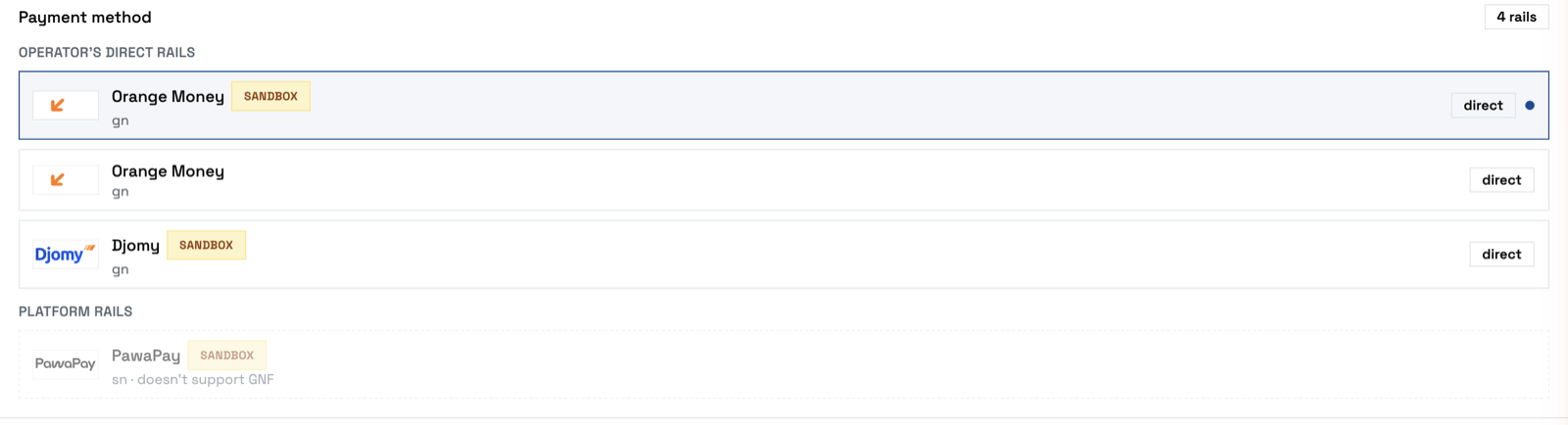
What you can pay with is set by whoever runs the platform — mobile money, cards, or both. The Payment method picker on Billing lists the rails available to you, and the same picker appears wherever you pay: a plan change, a domain purchase, a domain renewal.
Reading the picker
- Two groups, when both exist. Operator's direct rails are your platform's own provider contracts — the money settles to them directly. Platform rails belong to the payment platform underneath. You pay the same way either way; the grouping tells you who is collecting. A rail in the first group also carries a small direct badge.
- Rails show their brand — "Orange Money", "Djomy" — rather than the internal row name.
- A
Sandboxbadge means a test rail. This matters more than it looks: two rails for the same provider appear under the same brand name, and the badge is the only thing distinguishing the test one from the live one. Money paid on a sandbox rail is not real. - A greyed-out rail tells you why, for example doesn't support GNF when that rail can't settle the currency you're being charged in. It stays visible rather than vanishing, so you can see it exists and why it isn't available.
- If no rail can settle your currency the picker says so and names the person to ask, rather than leaving you an empty list.
Rails your platform hasn't enabled don't appear at all.
Failed Payments
If a payment fails:
- You'll receive an email notification
- Stripe will retry the payment automatically
- Update your payment method if needed
- After multiple failures, your subscription may be paused
FAQ
When does my billing period reset?
For paid plans, your billing period starts on the day you subscribed. For example, if you subscribed on January 15th, your period runs from the 15th of each month to the 14th of the next month.
Can I get a refund?
Contact support within 14 days of charge for refund eligibility. Partial refunds may be available for unused time on annual plans.
What happens to my apps if I exceed limits?
Existing apps continue running. You cannot create new apps or deploy updates to apps exceeding your new limits until you're within limits.
Do failed builds count against my minutes?
Yes, build minutes are counted from the start of the build process, regardless of outcome. Optimize your Dockerfiles to reduce build times.
Can I buy additional build minutes?
Currently, upgrading to a higher plan is the only way to get more build minutes. Contact your platform operator for custom plans with higher limits.
How do I view my current usage?
Go to Billing from your profile menu. The usage dashboard shows real-time consumption against your plan limits.
What features are gated by plan?
Feature availability depends on your platform operator's configuration. Common gated features include:
- Custom Domains: Typically requires a paid plan
- Domain Purchasing: Buy domains directly from the platform (Pro/Business plans)
- Team Members: Higher plans allow more team members
- Build Minutes: Higher plans include more build time